

Screenshots
A picture is worth a thousand words. That is why we have put together a number of screenshots. In addition to the screenshots, there is also documentation that provides more information.

For volunteers
- Home page volunteer
- My page
- All shifts
- Open shifts
- Transfer a shift
- Search people
- Photobook
- Email - Request to take over a shift
- Email - Commitment request
- Email - Request login details
- Email - Reminder
- Email - Notification (assignment)
- Email - Notification (cancelled)
Click on a screenshot to enlarge it
For the administrator
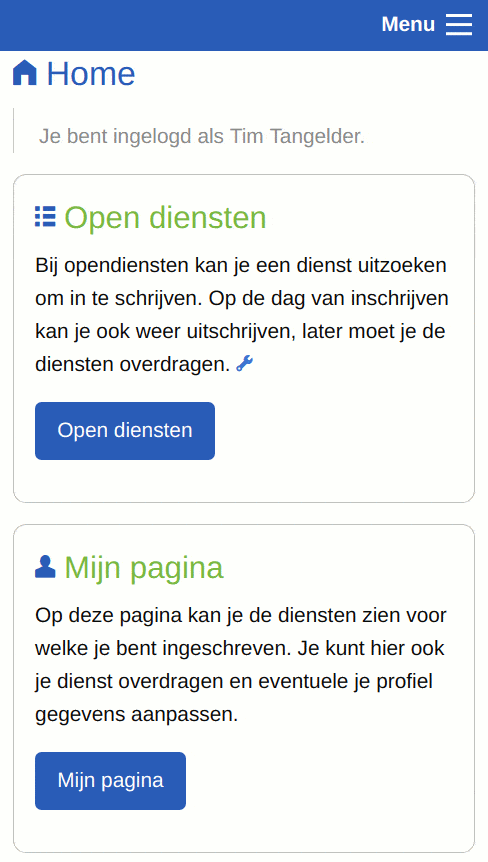
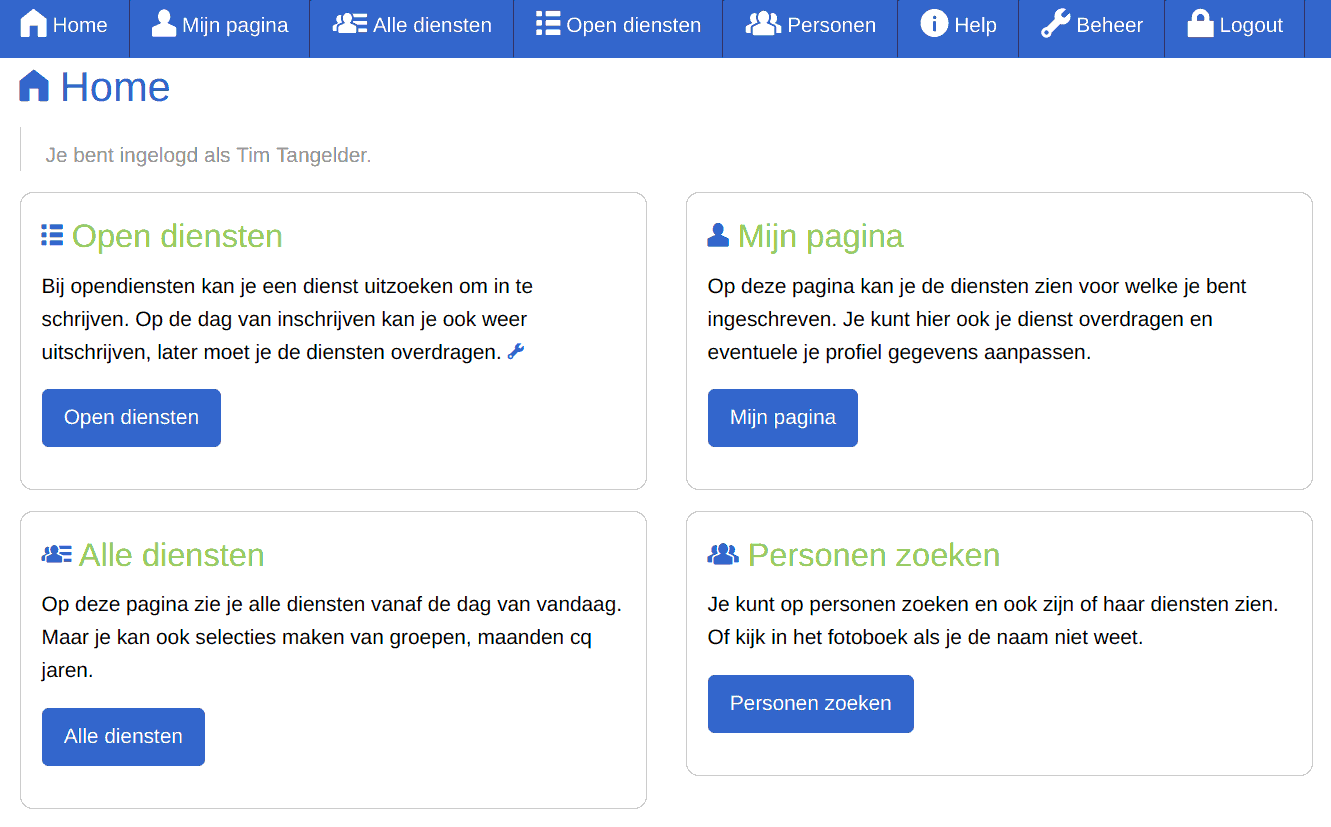
Home page volunteer
After logging in you arrive on the home page
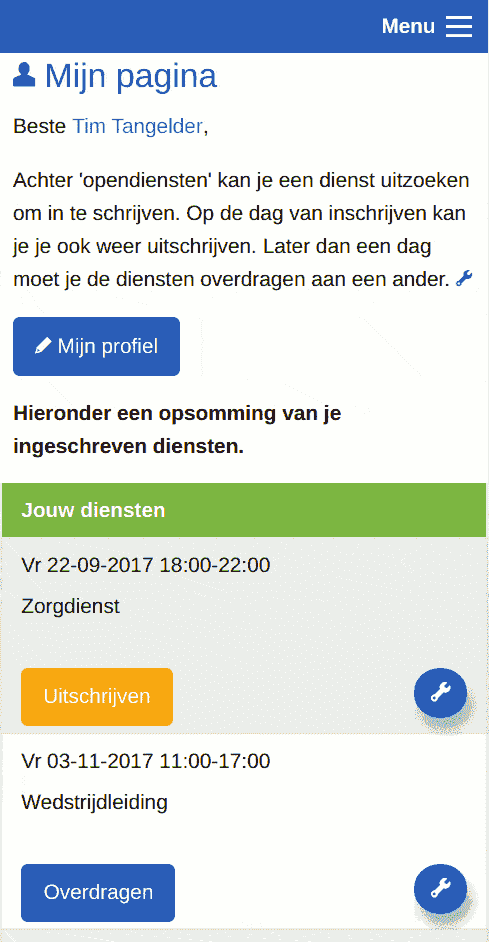
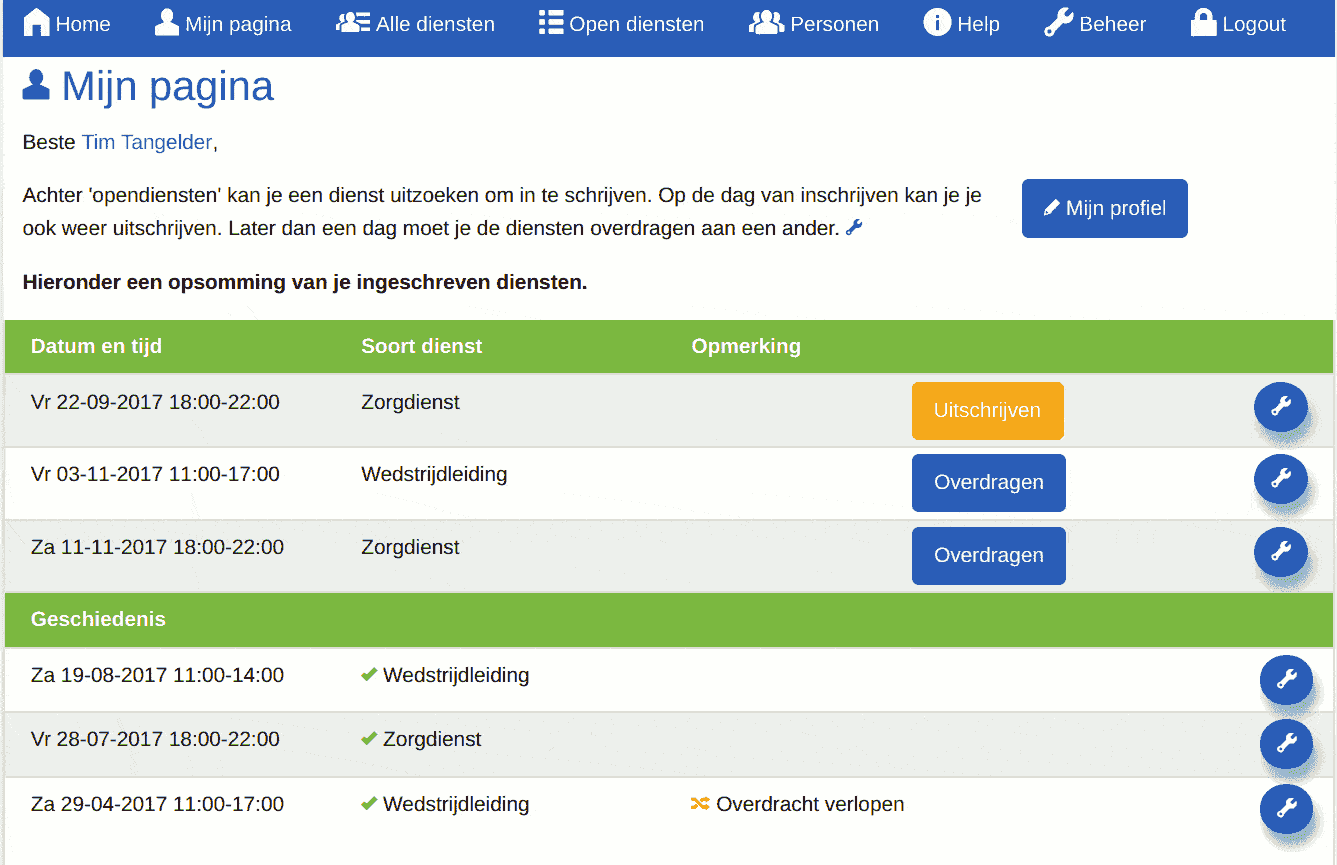
My page
This page shows the shifts you are assigned to. Via ' My profile you can also edit your personal details.
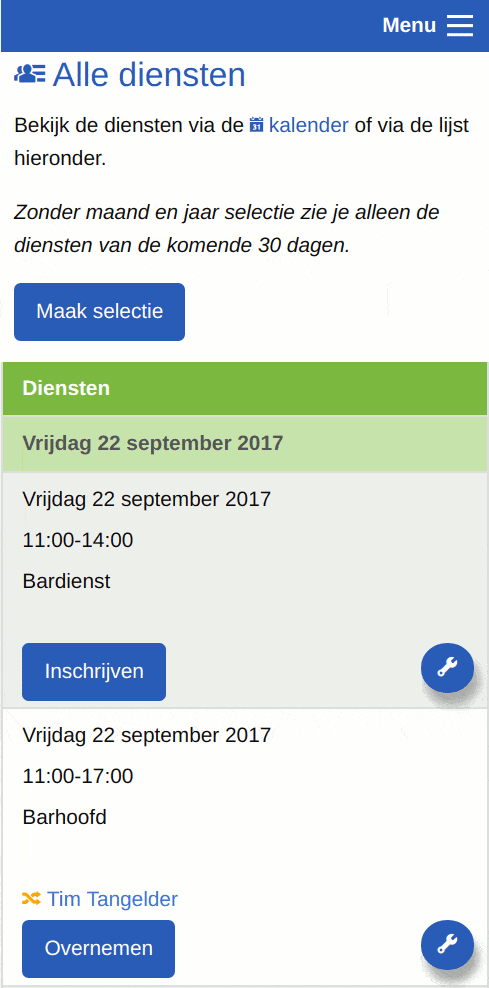
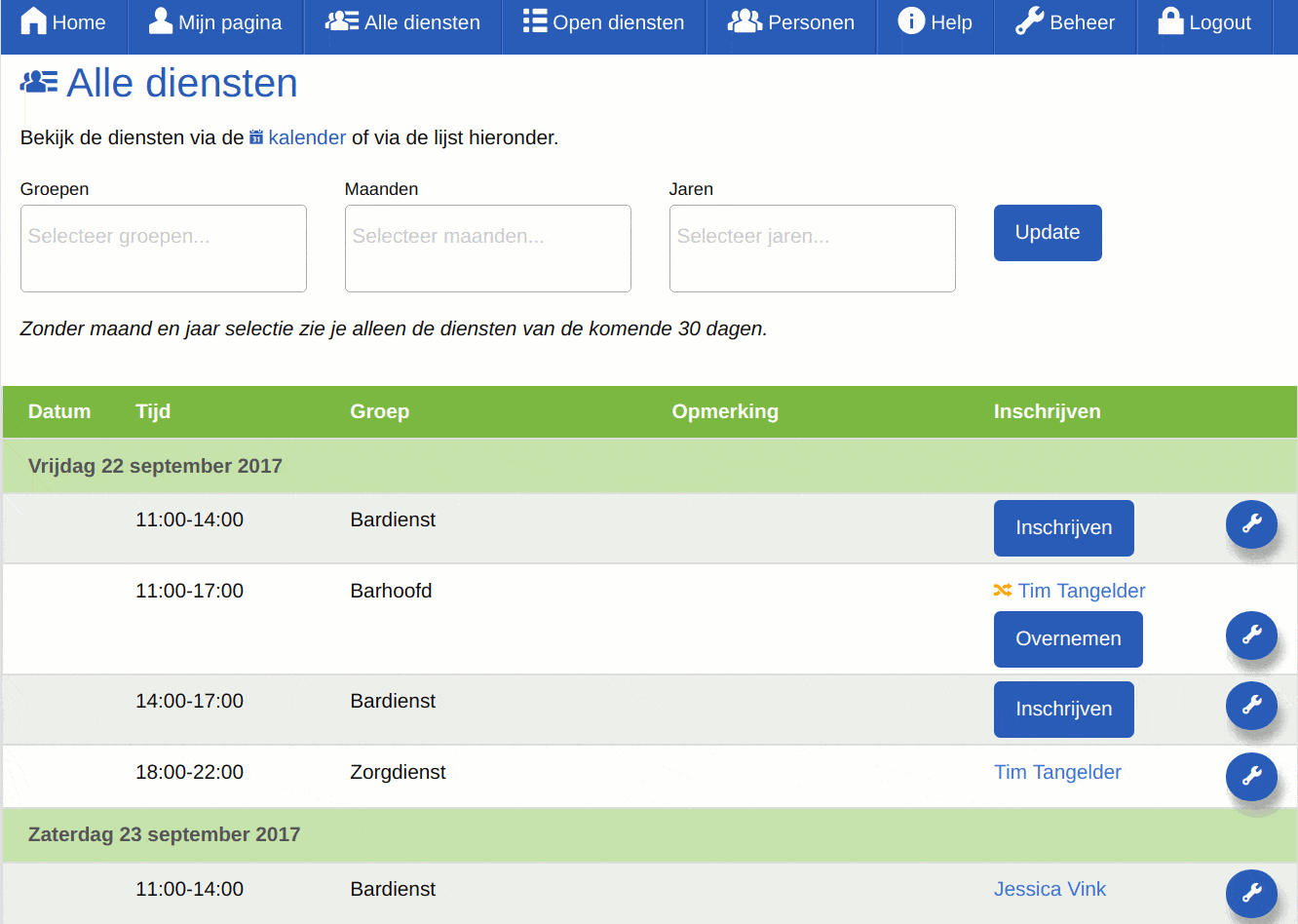
All shifts
On this page you can see the open shifts, the shifts that are already assigned and any transfer requests.
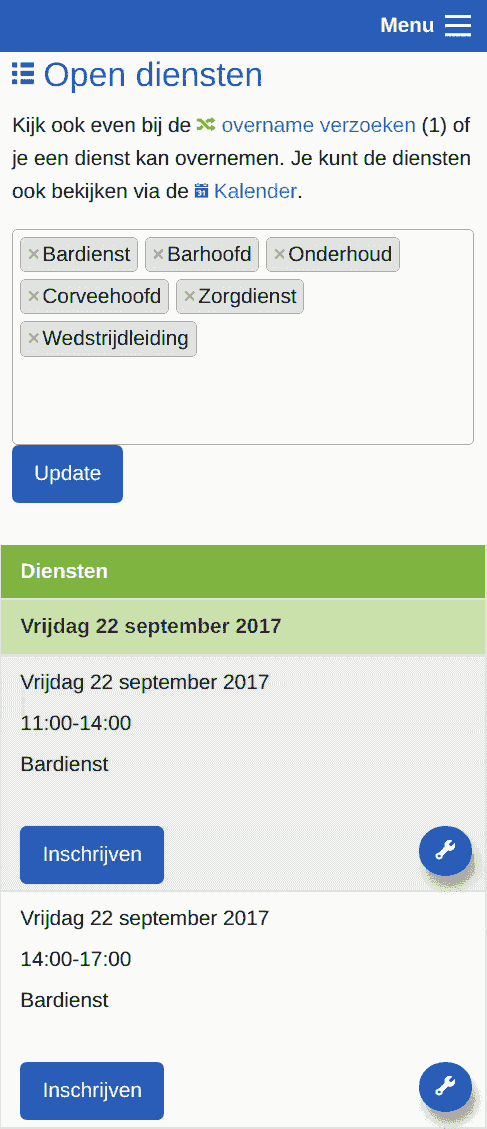
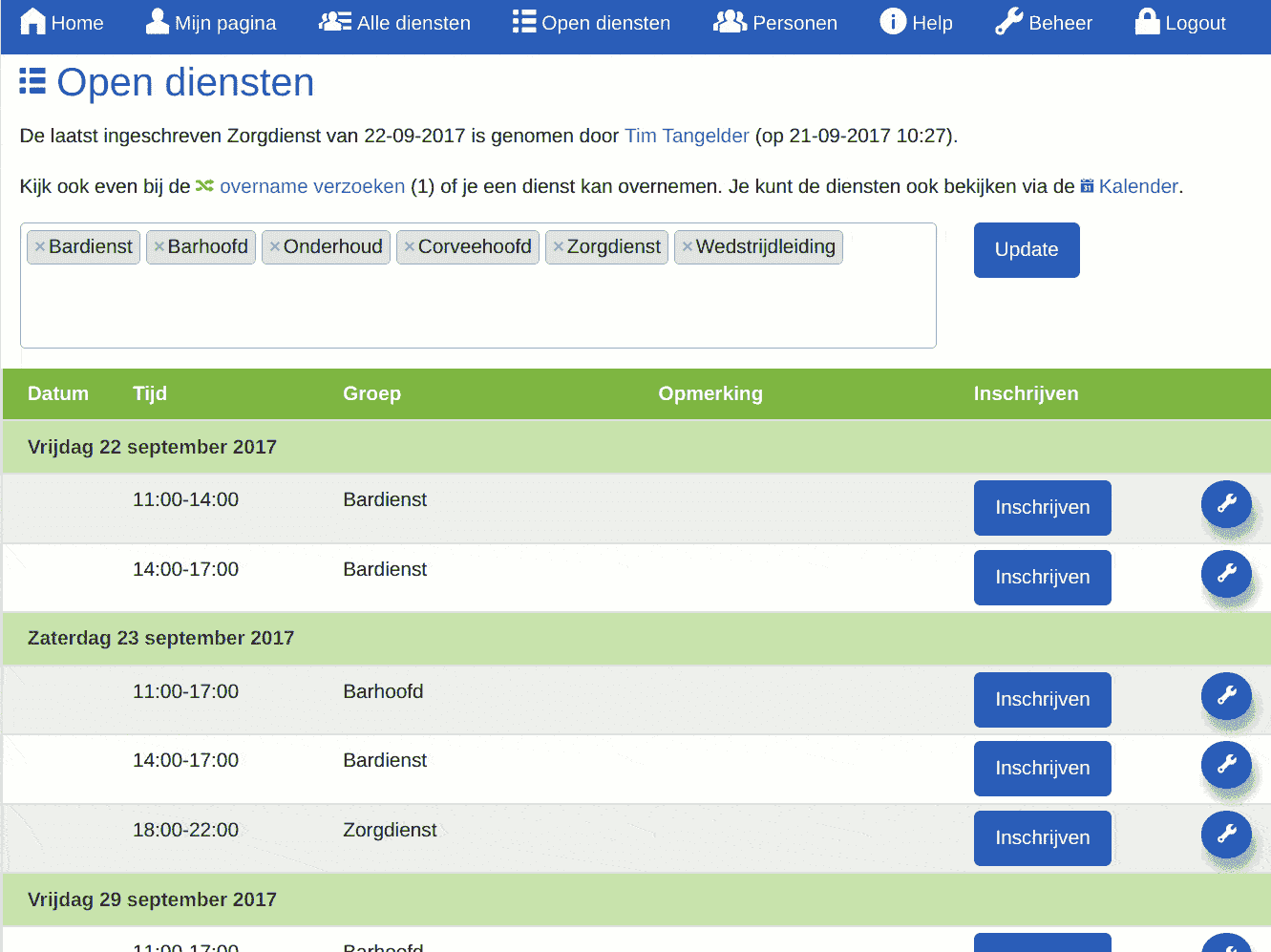
Open shifts
On the open shifts page you only see shifts that are still available to assign for.
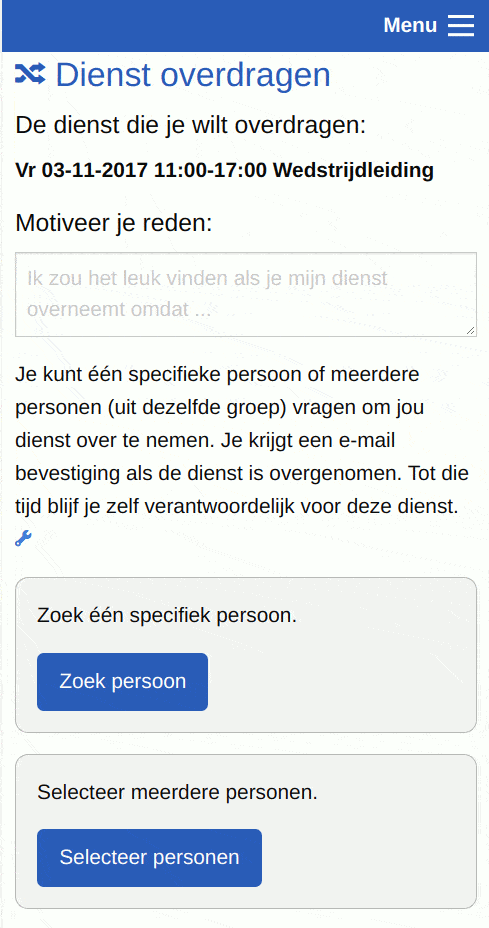
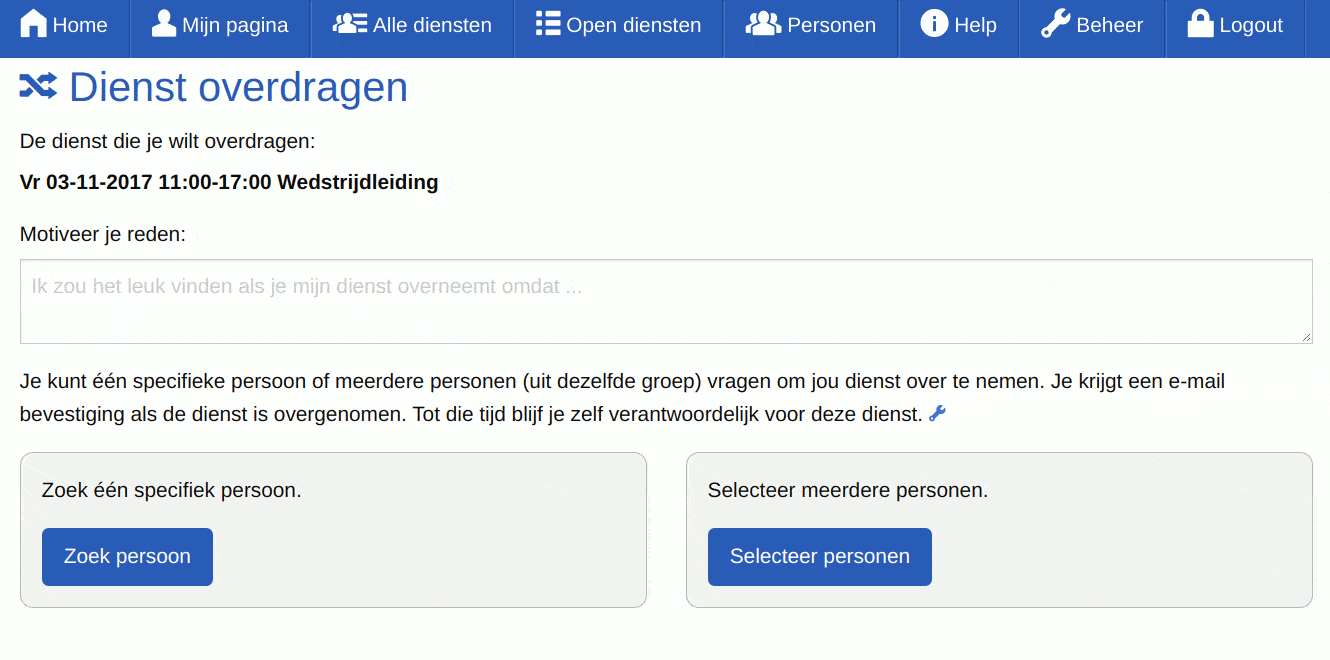
Transfer a shift
If for any reason you can no longer make a shift you have signed up for, you can easily transfer it to someone else.
See also screenshot 'Email - Request to take over a shift'.
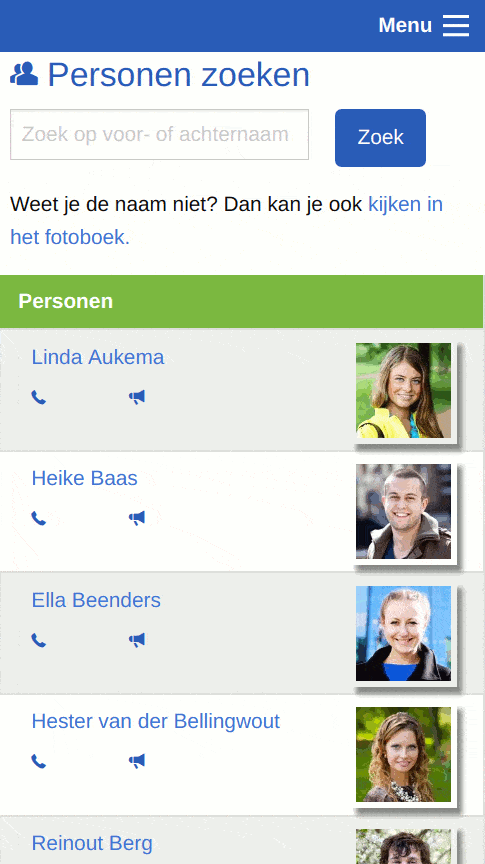
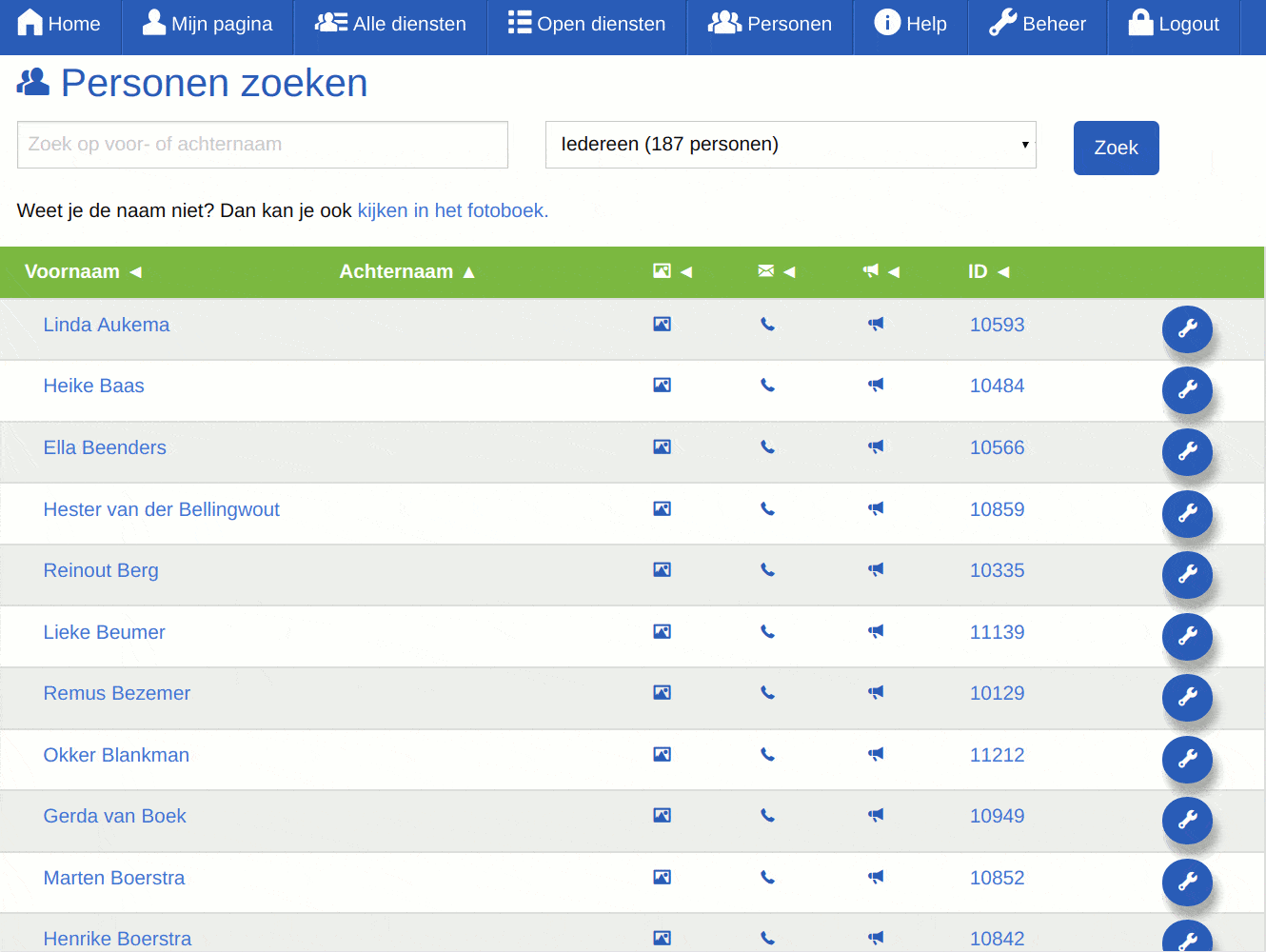
Search people
You can search for other people within the organisation.
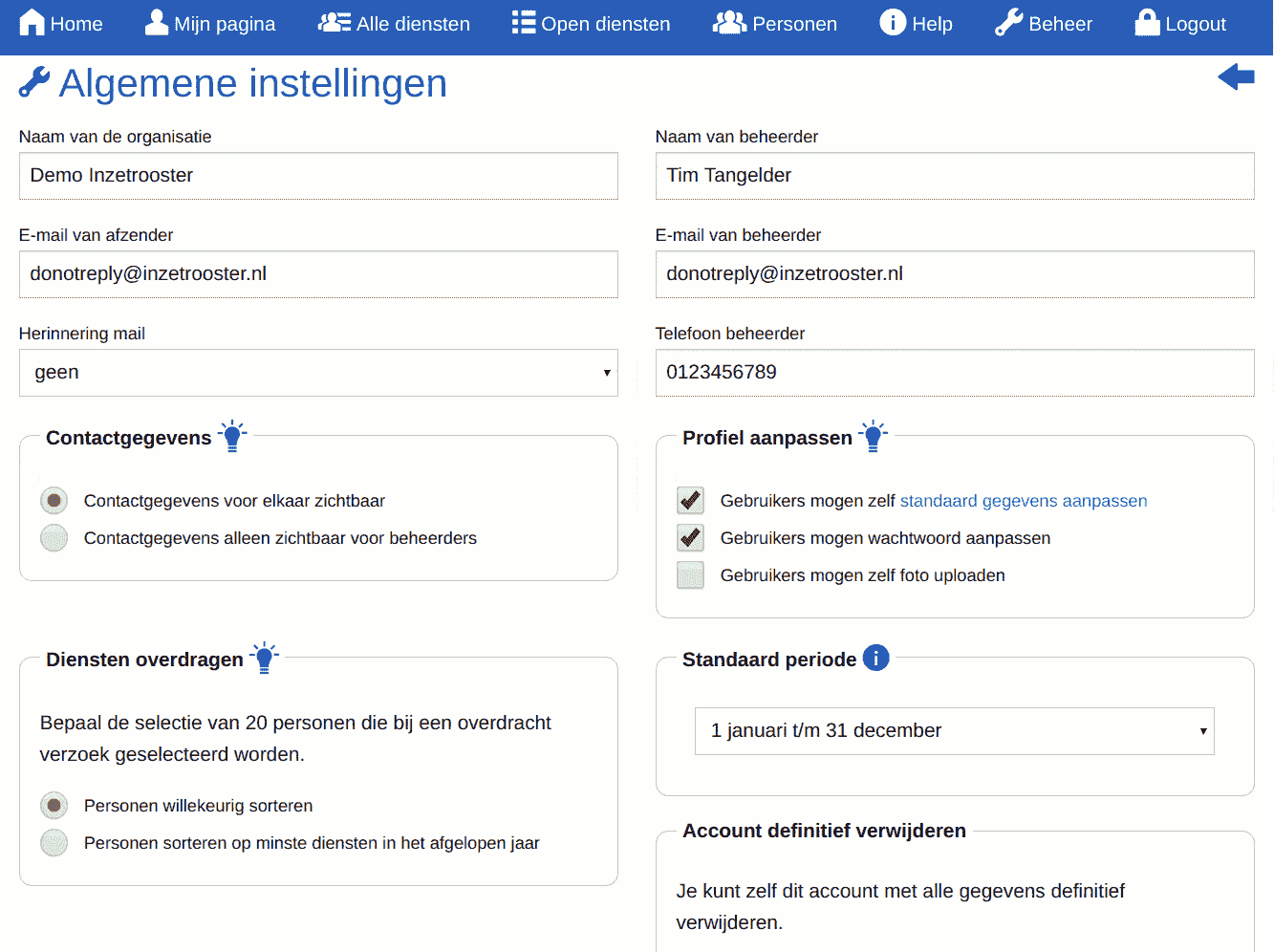
The administrator has the option to hide contact details from other users via the settings.
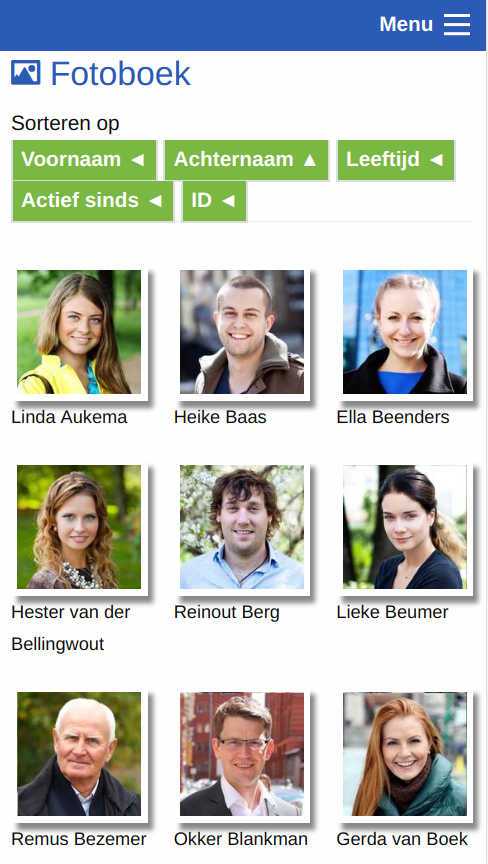
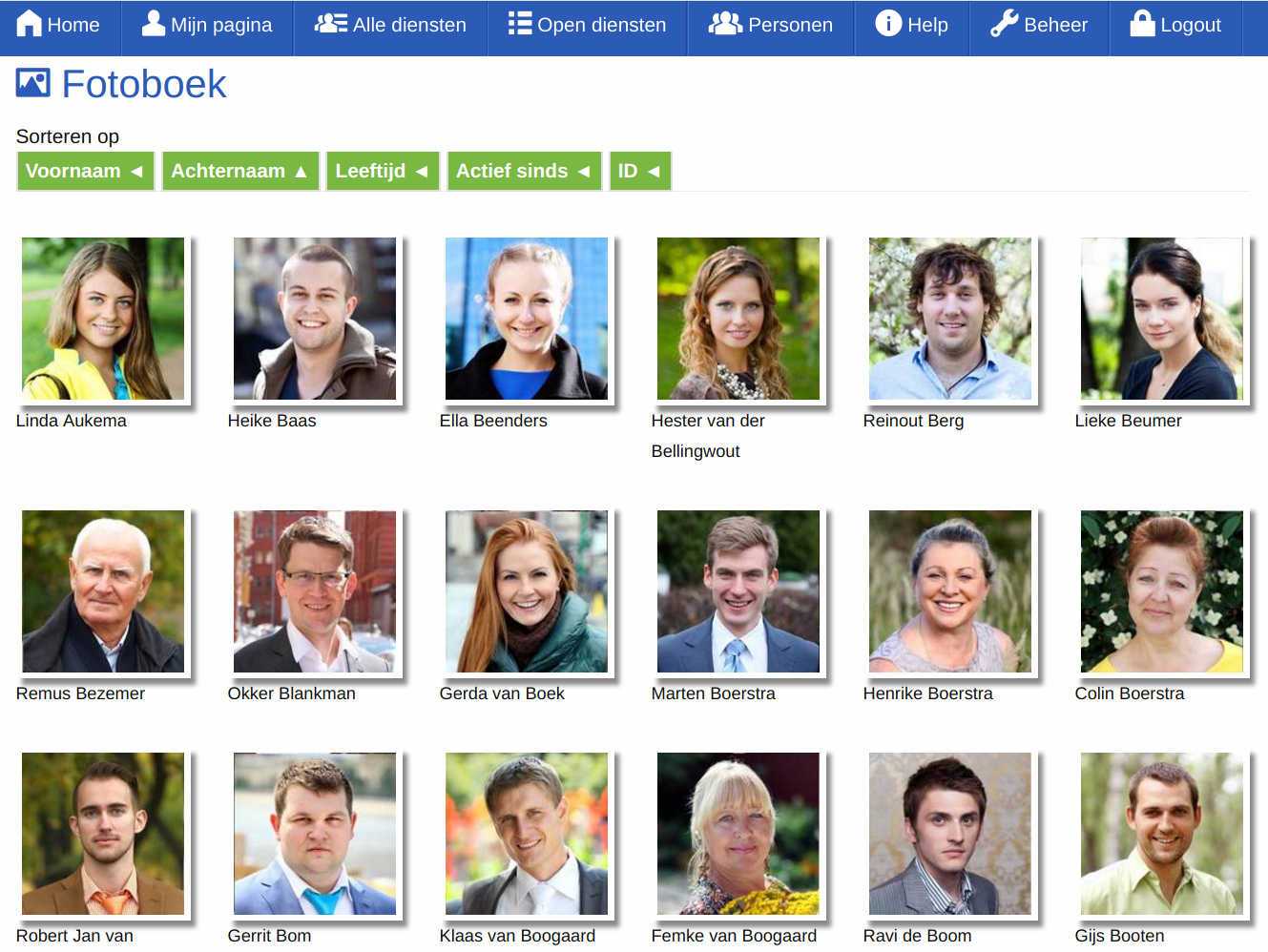
Photobook
The photobook is very useful when you don't know someone's name within the organisation.
By default the photobook is sorted by last name. You can also sort by first name, age and how long someone has been active in the organisation.
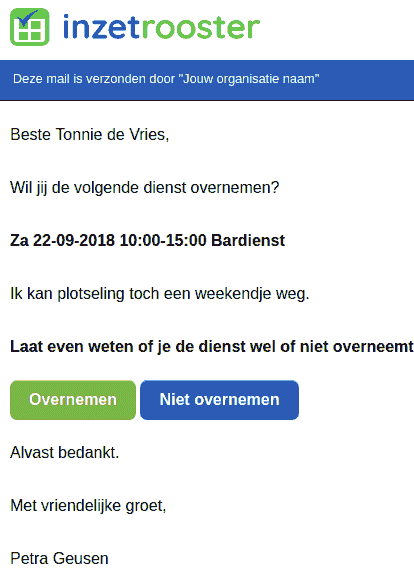
Email - Request to take over a shift
When someone has sent a request to transfer a shift, the email looks roughly like this.
See also screenshot 'Transfer a shift'.
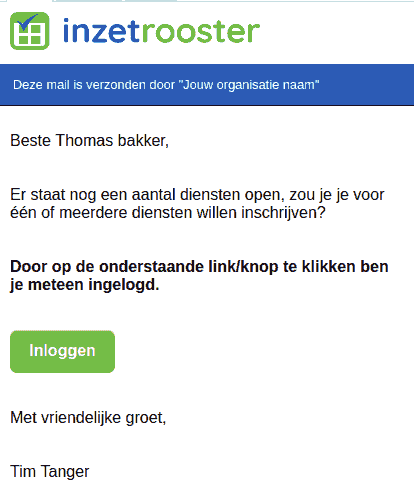
Email - Commitment request
When the administrator has sent a commitment request, the email looks roughly like this.
See also administrator screenshot Send a commitment request.
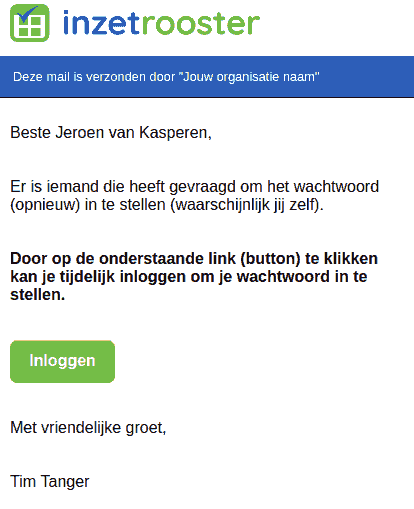
Email - Request login details
If you have forgotten or never received your login details, you can request them by email. The email looks roughly like this.
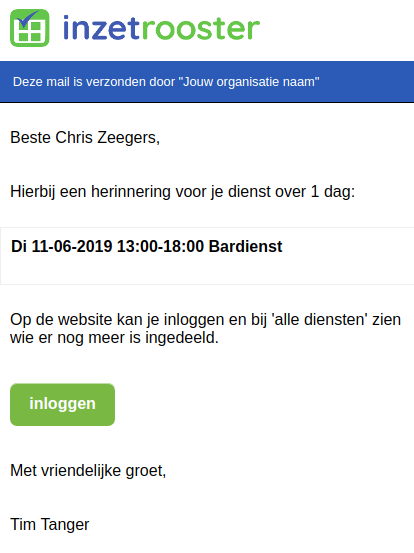
Email - Reminders
Reminders look roughly like this. You can set how many days in advance the reminder is sent via the configuration settings.
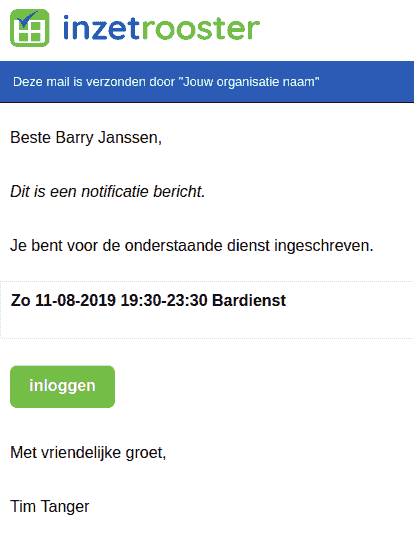
Email - Notification (assignment)
When you as administrator assign someone for a shift, you can immediately send a notification. A notification always shows the shift details .
There are three variants:
- A notification for the person being assigned (this example)
- A notification for the person being unassigned (when another person is linked)
- A notification for a change to the same person's shift. The email first shows how the shift was followed by how the shift has changed . See also the next screenshot.
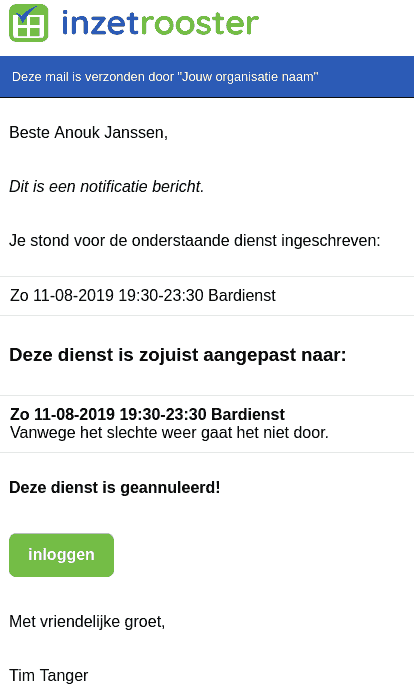
Email - Notification (cancelled)
A cancellation notification goes directly to the person concerned and looks roughly like this. The email first shows how the shift was , followed by how the shift has changed .
The text "Due to bad weather it will not go ahead" was entered in the remarks field when the shift was modified.
By checking the cancelled checkbox, the line 'This shift has been cancelled!' is added to the notification.
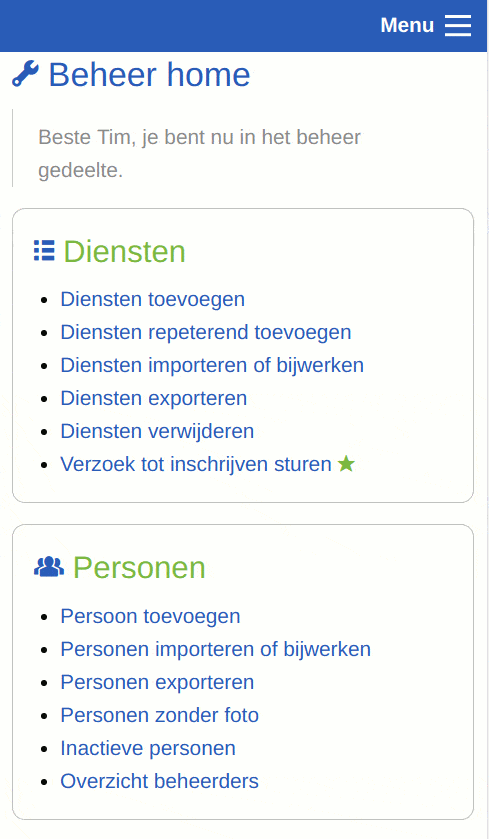
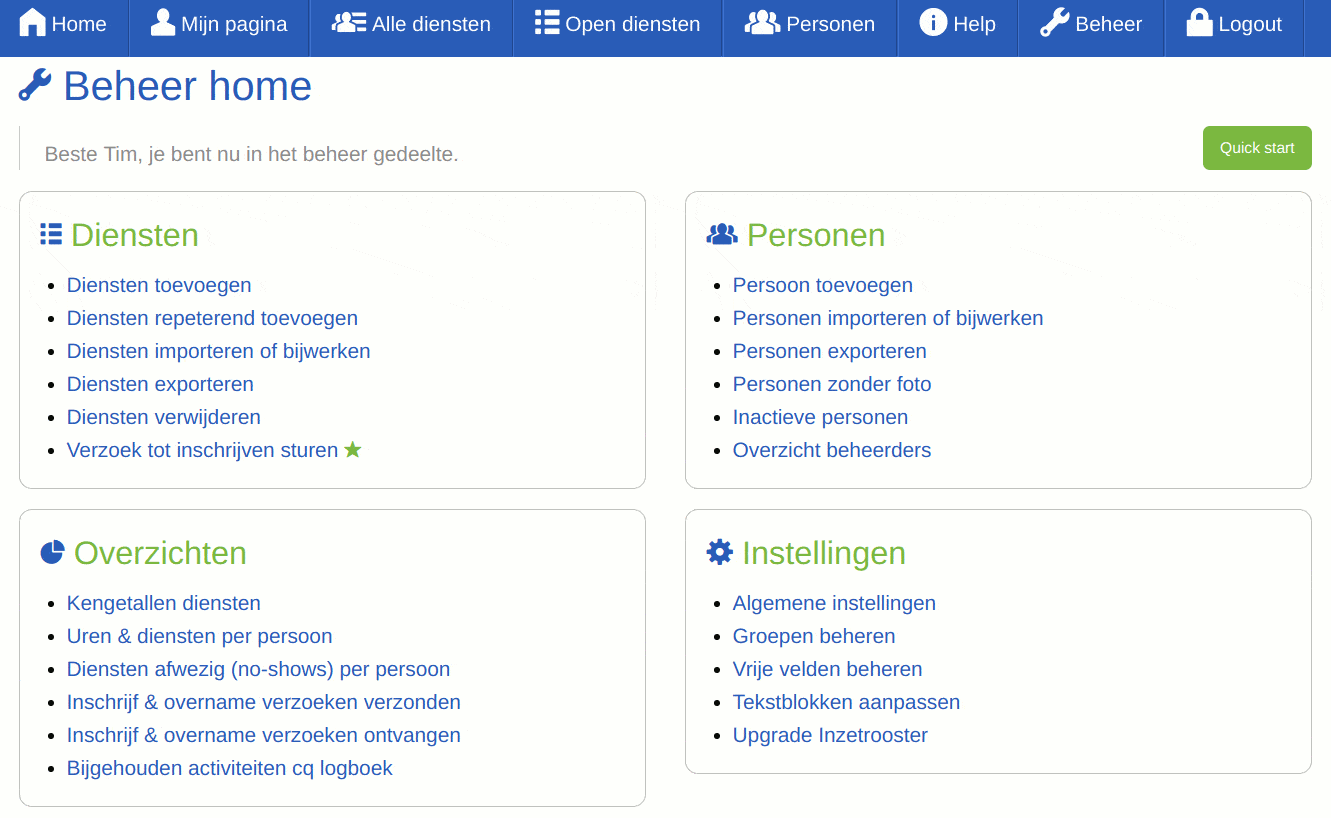
Administrator home page
When you are logged in as an administrator (coordinator), you arrive on the management page.
As an administrator you get an extra link in the top menu
As an administrator you also get an extra button on various pages, giving you direct access to the relevant management page.
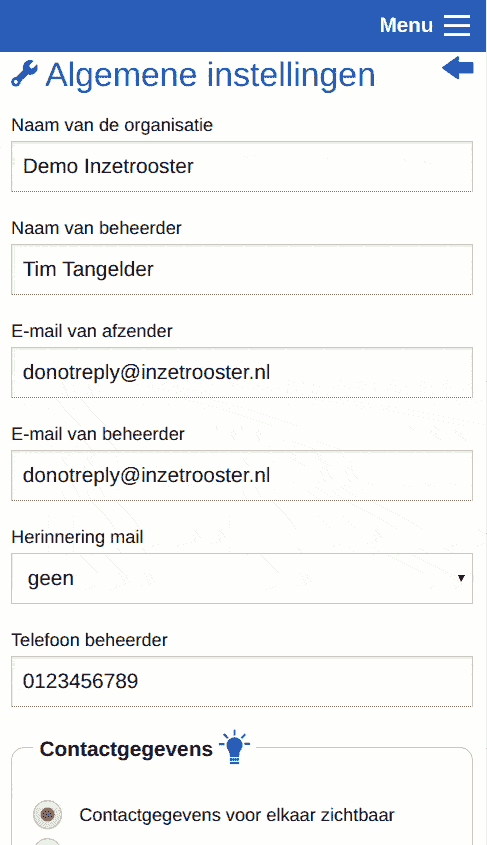
General settings (administrator)
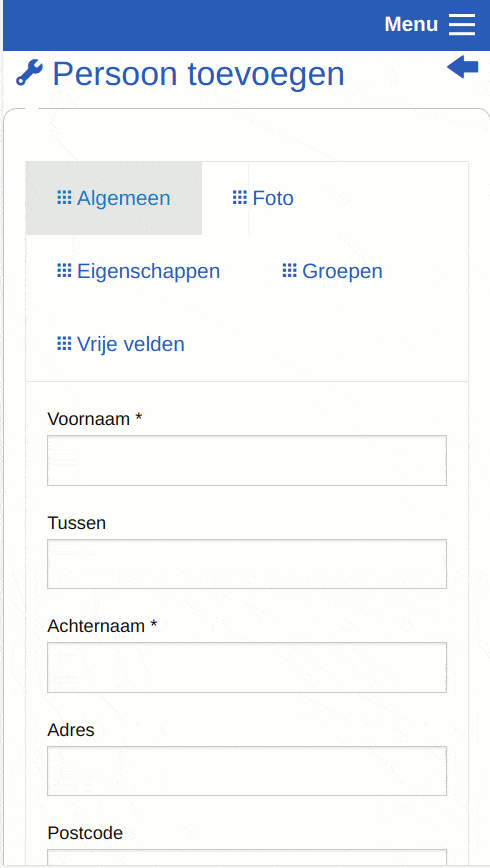
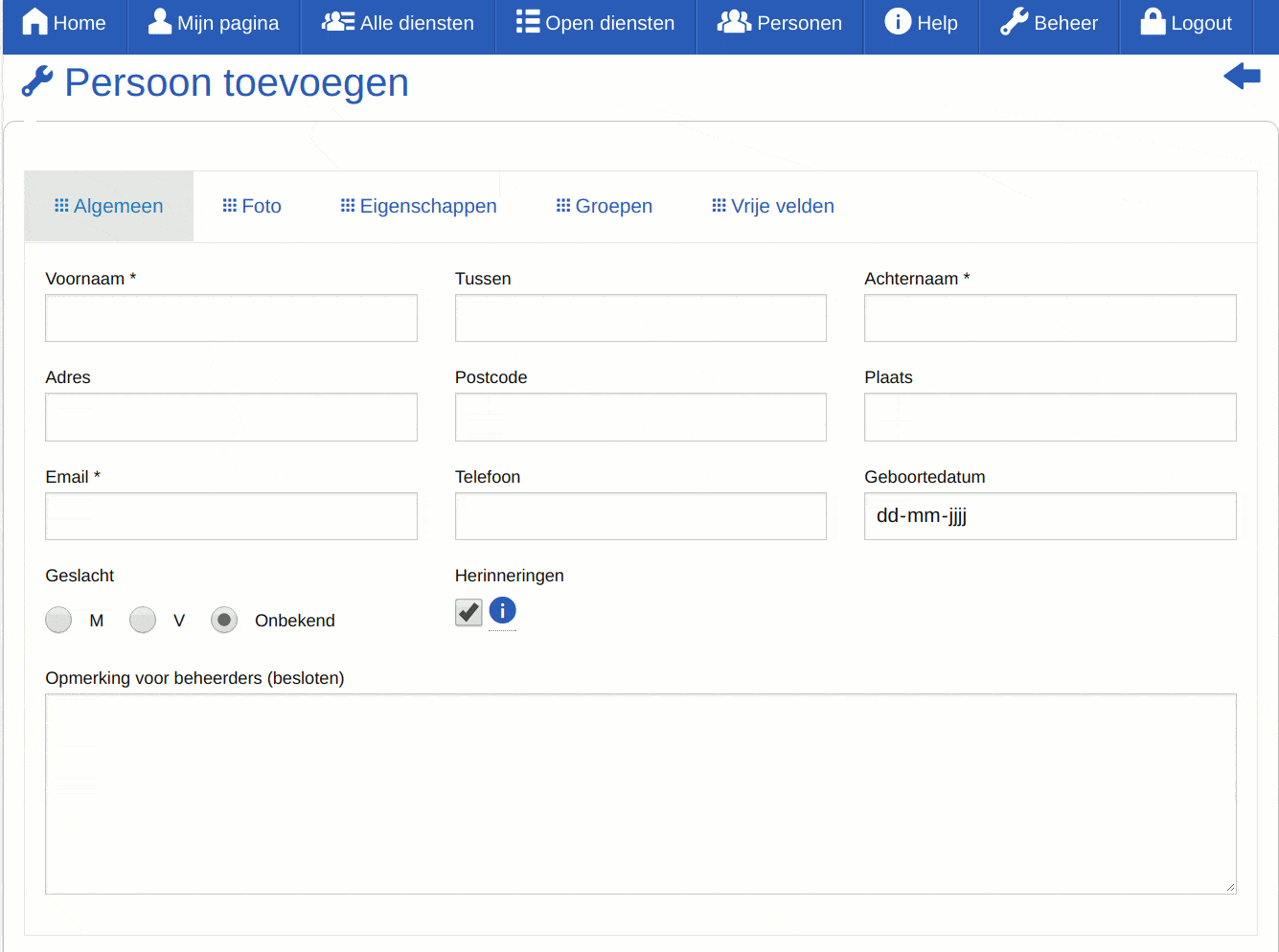
Add a person (administrator)
On the 'Settings' tab you can set the login details or make someone else an administrator.
On the 'Photo' tab you can add a photo.
On the 'Groups' tab you can add the person to groups. See also screenshot Manage groups.
Import or update people (administrator)
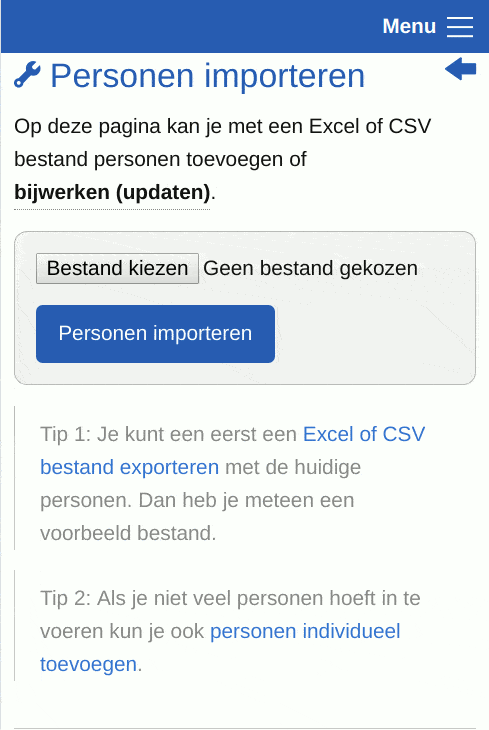
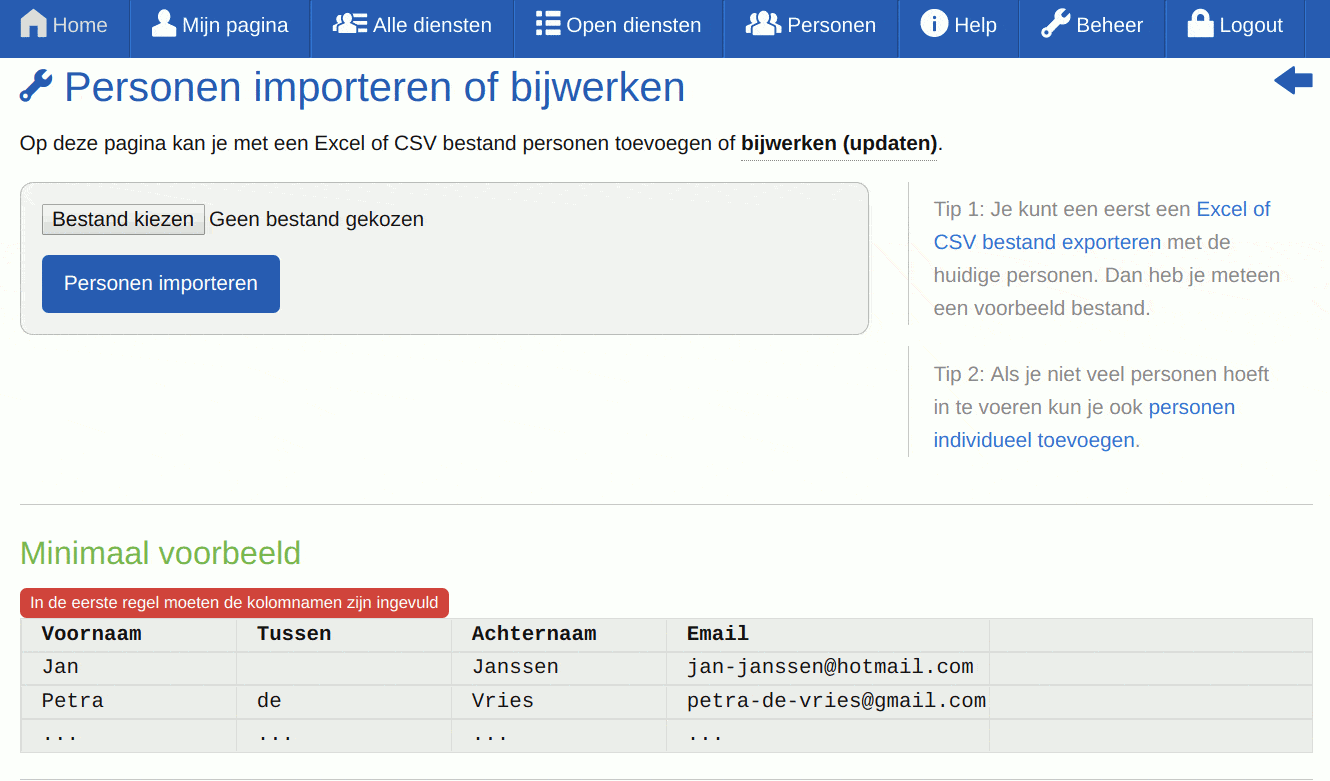
You can also easily import or update people via a spreadsheet (Excel/CSV). Updating is especially useful if you already use an existing administration system. You can also import encrypted (bcrypt) passwords so you can use the same login credentials from your current system.
We are happy to help you with importing people.
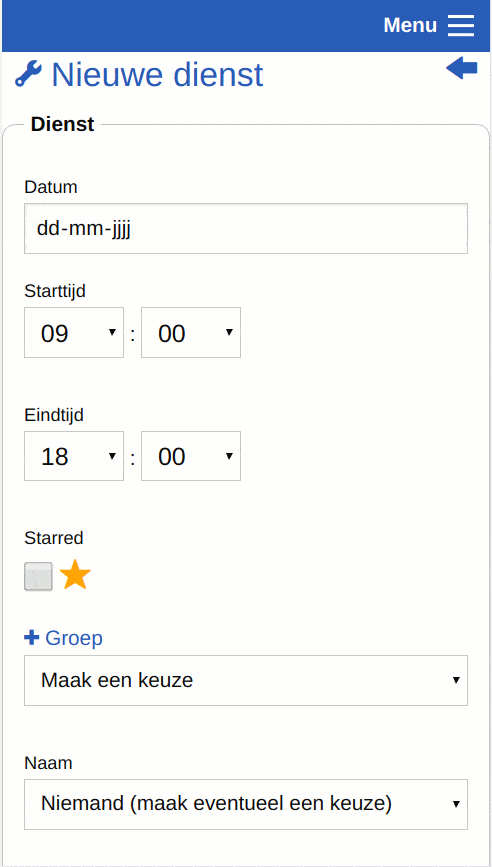
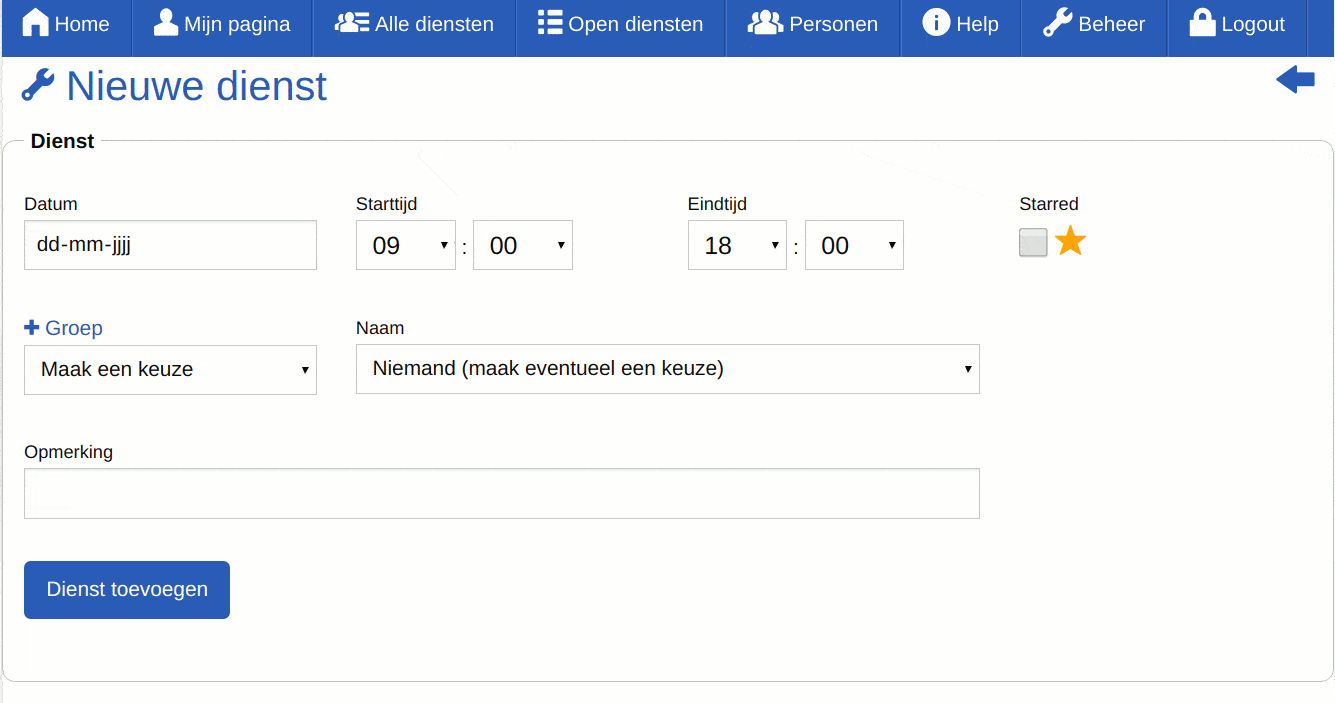
Add a new shift (administrator)
When adding a new shift you can optionally assign a person directly. This way you can quickly add shifts manually, but you can also add recurring shifts. You can also immediately send a notification when you assign a person.
Add recurring shifts (administrator)
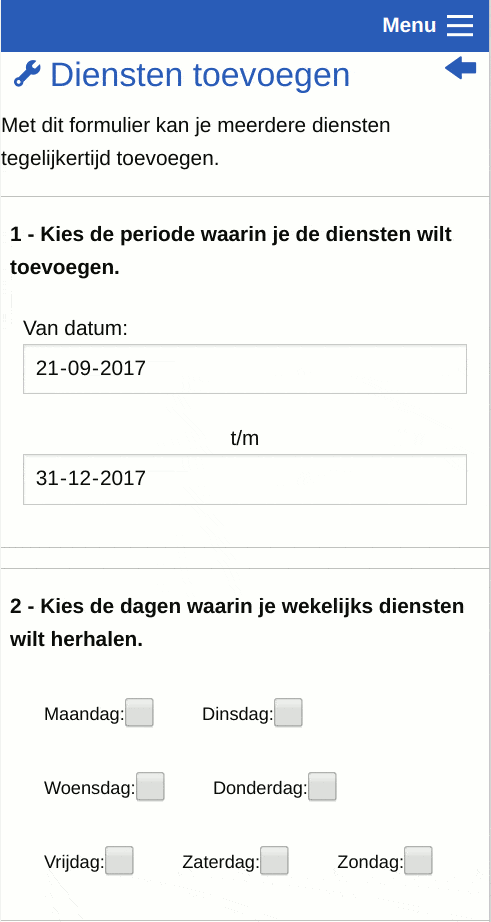
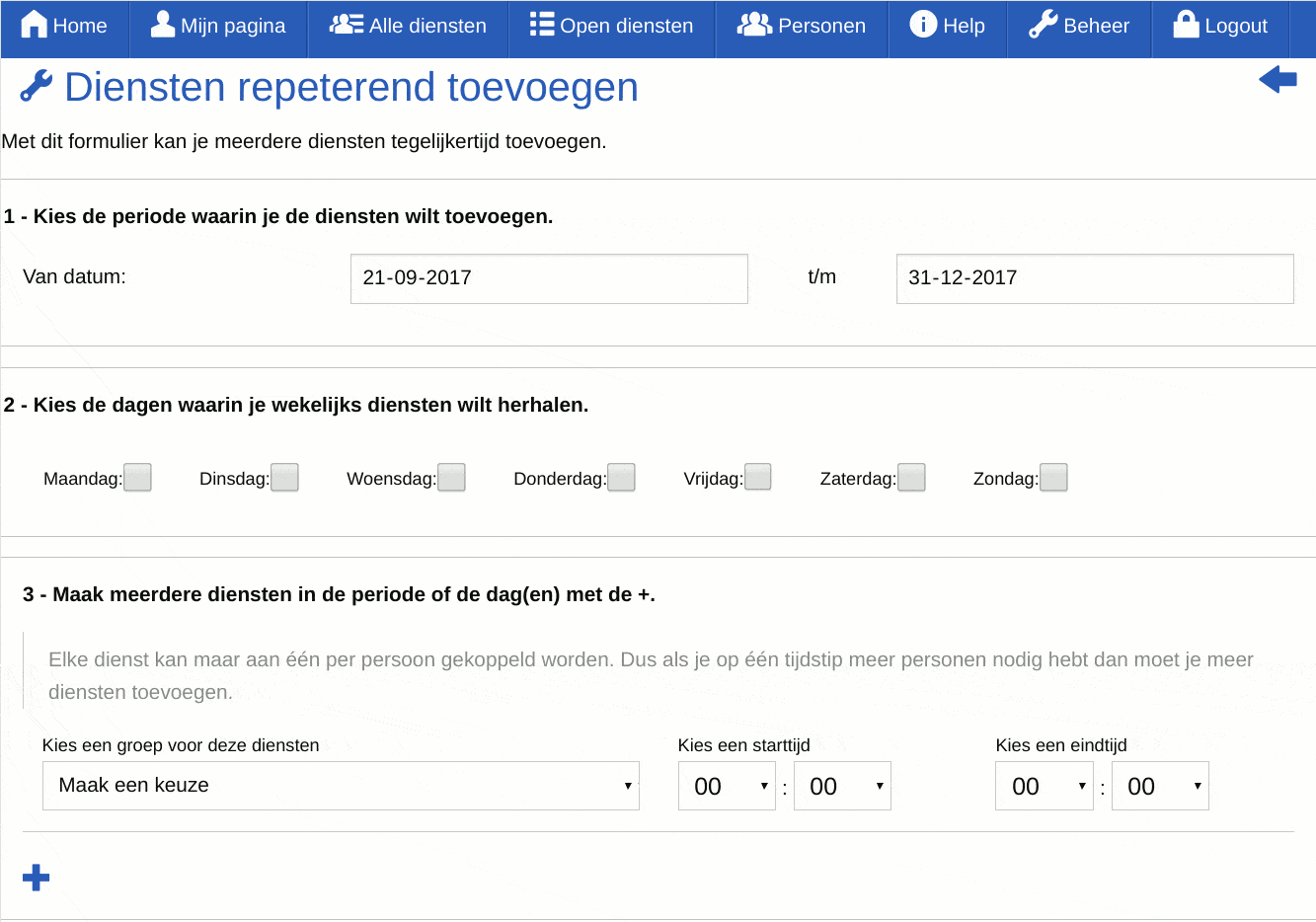
You can also add shifts over a longer period using a form.
By clicking the plus you can add multiple shifts for the chosen days.
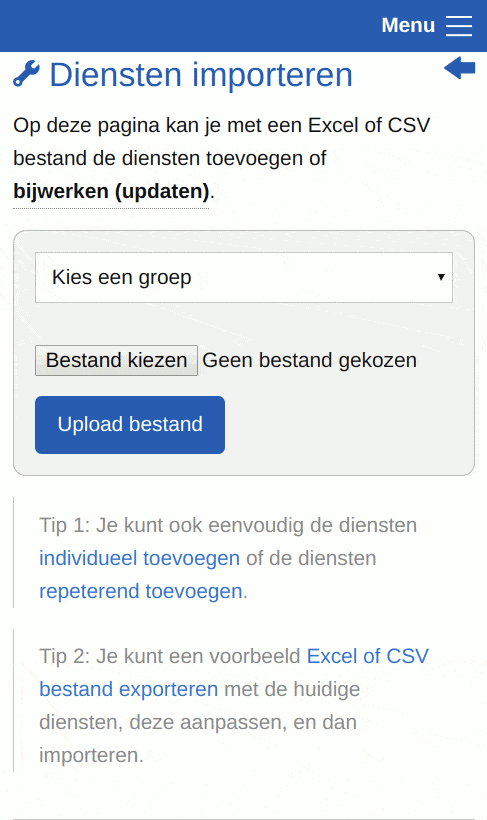
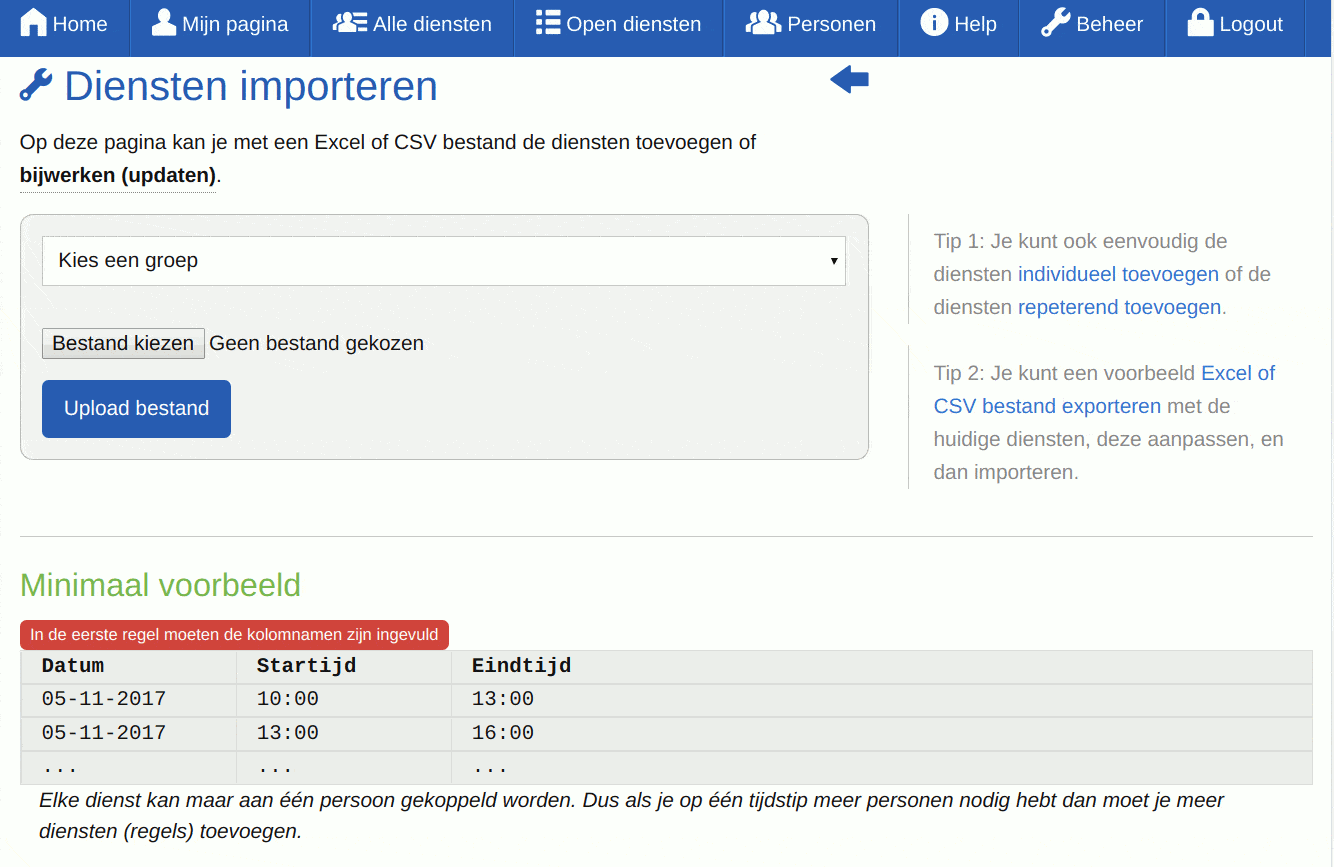
See also screenshot Import shifts.
Import shifts (administrator)
In addition to creating shifts via a form, you can also create shifts via an import. If the 'User_id' is present, the person will be assigned for that shift; otherwise it becomes an open shift.
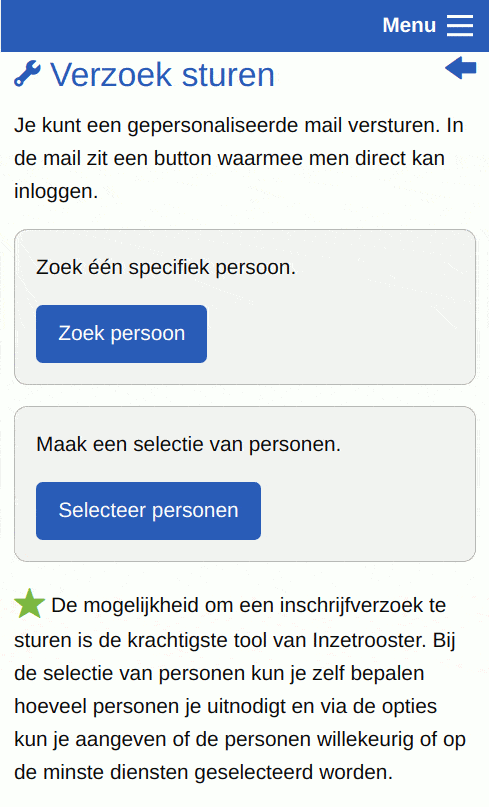
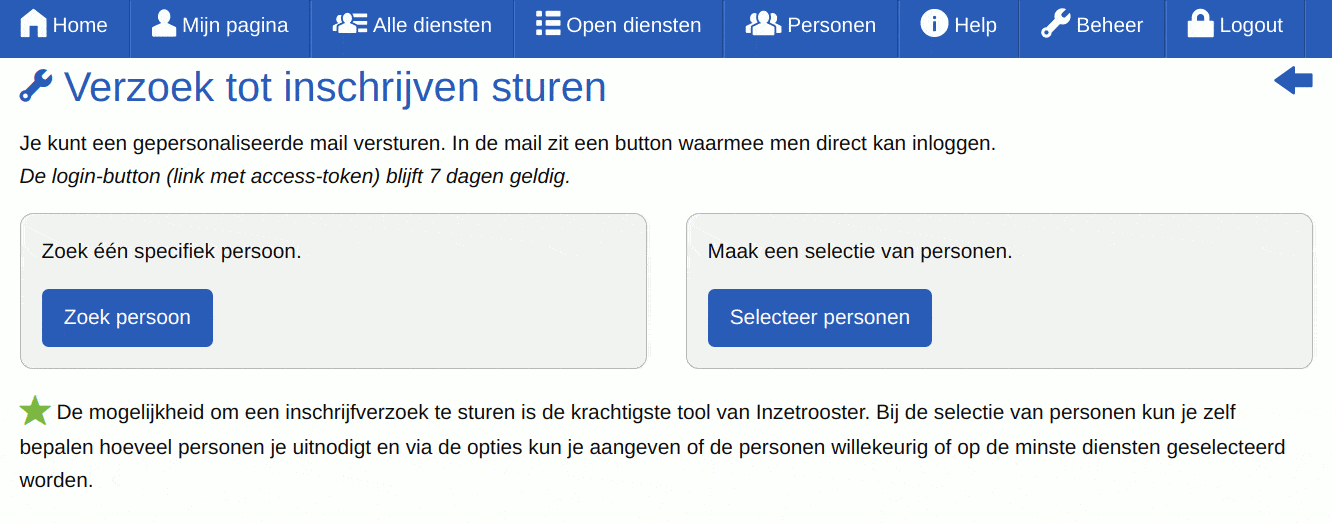
Send a commitment request (administrator)
This is the core strength of ShiftPlanner. You can select people based on the number of shifts they have completed. This allows you to target those who have not yet fulfilled their commitments. They receive a personalised email (with an access token) that allows them to log in directly.
See also screenshot 'Email - Commitment request'.
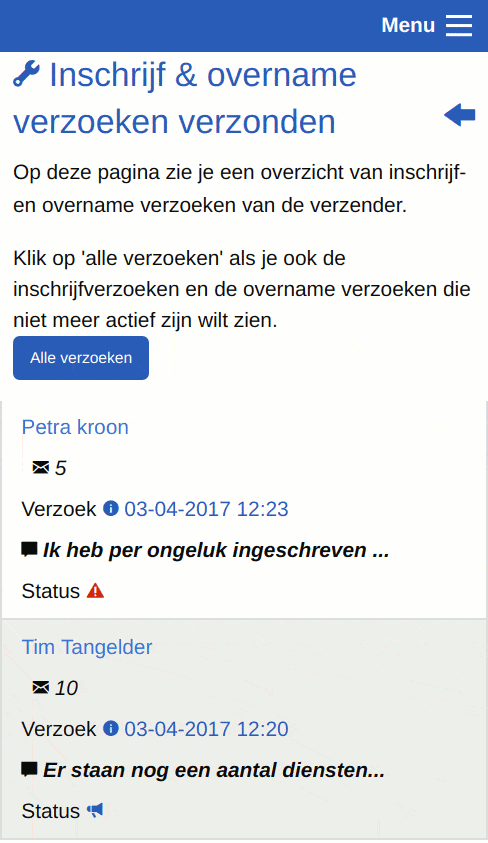
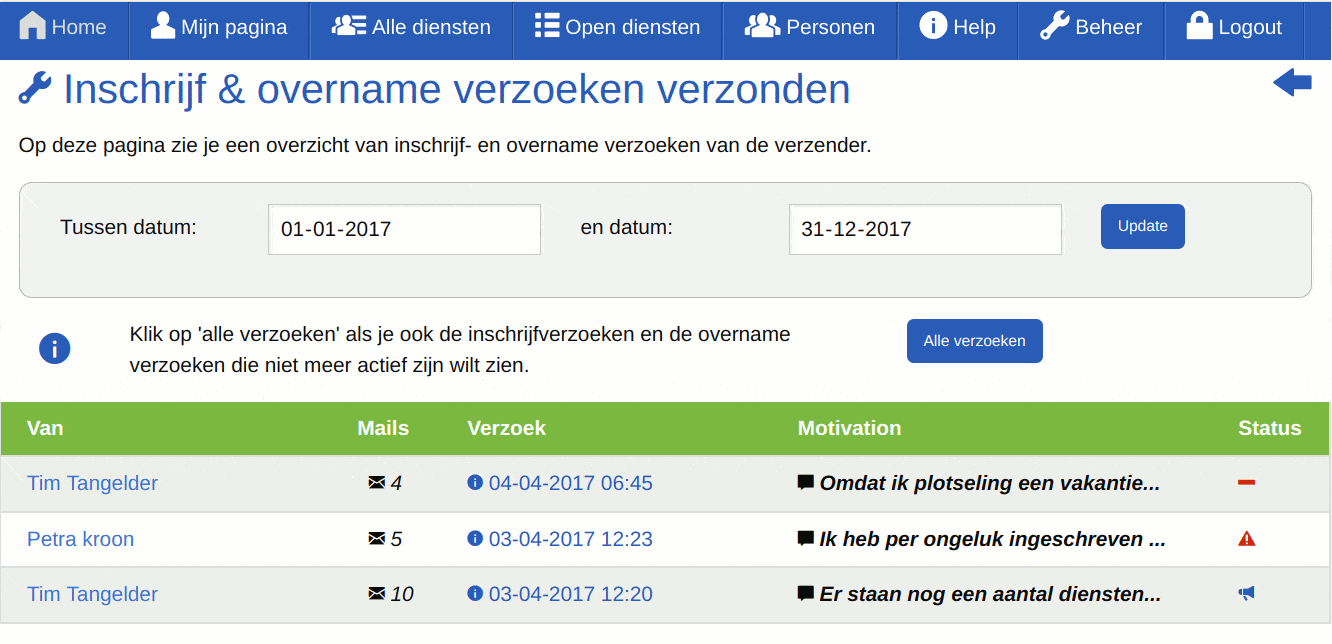
Commitment and transfer requests sent (administrator)
Here as an administrator you can see who has made a transfer request. Using the 'all requests' button you can also view expired requests.
The alert icon indicates a transfer request that has not yet been handled.
The envelope icon indicates a commitment request sent by the administrator.
Clicking on the request date shows you which shift it concerns and which people it was sent to.
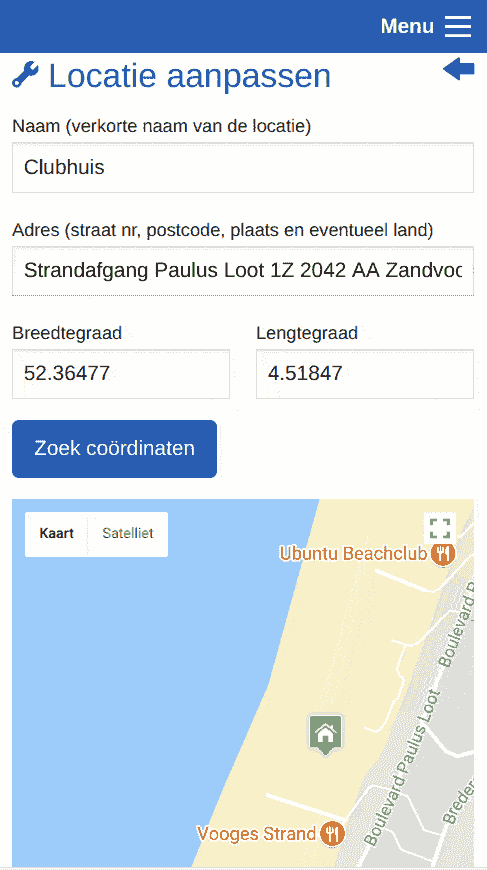
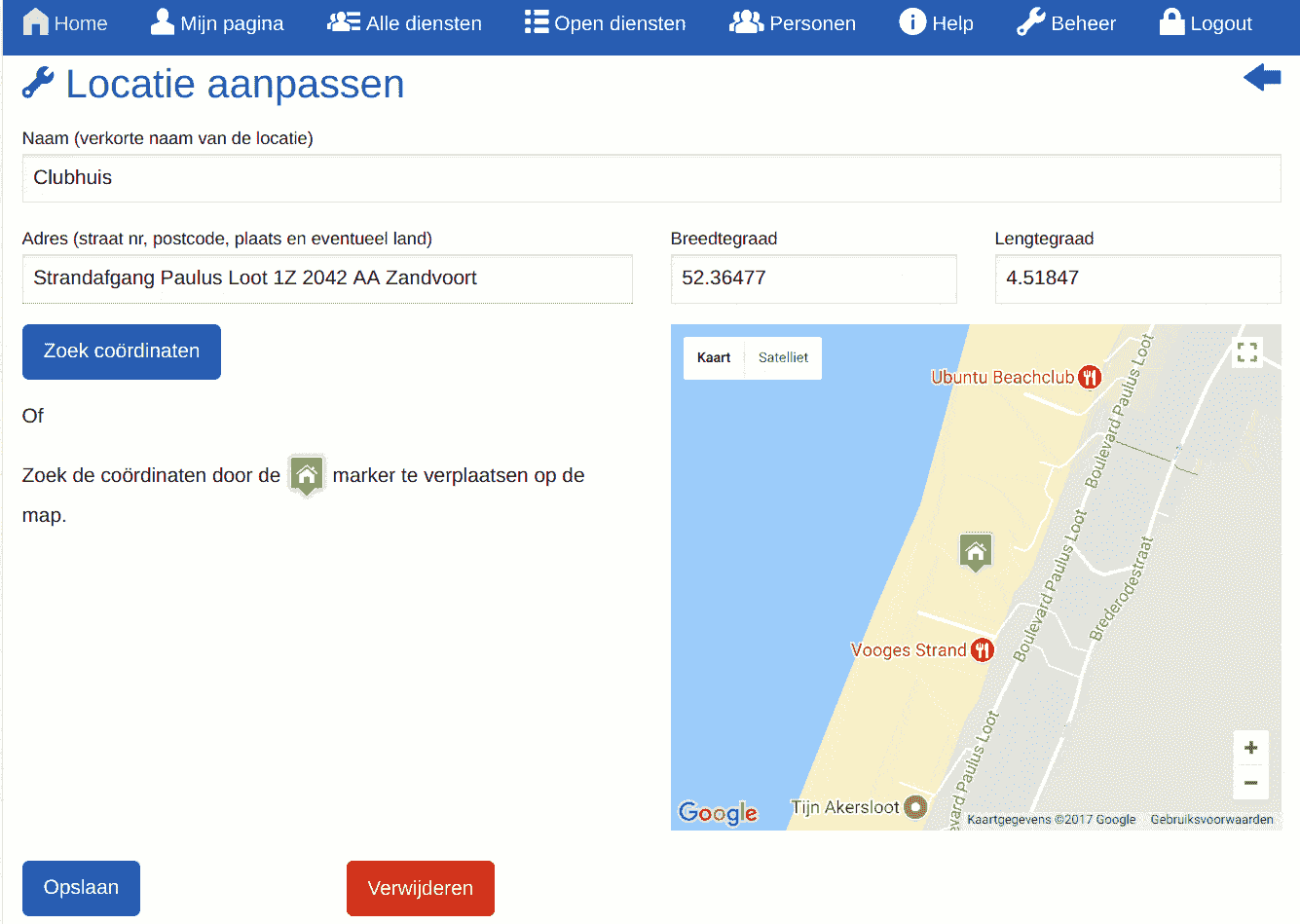
Edit location (administrator)
You can create locations and optionally link them to a shift.
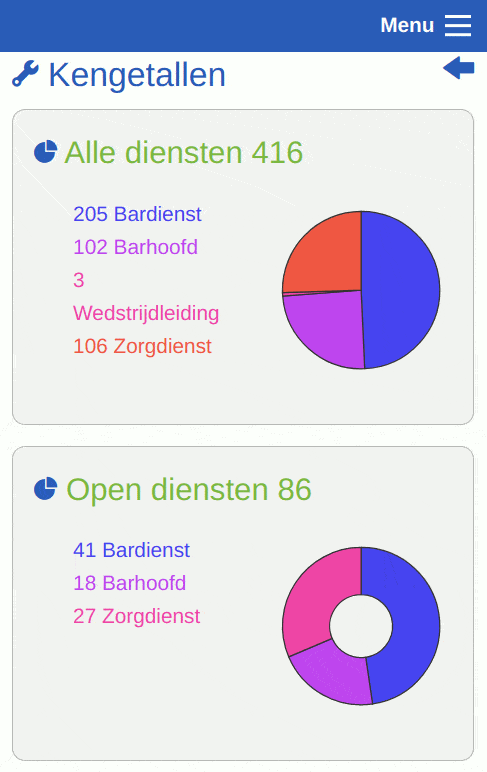
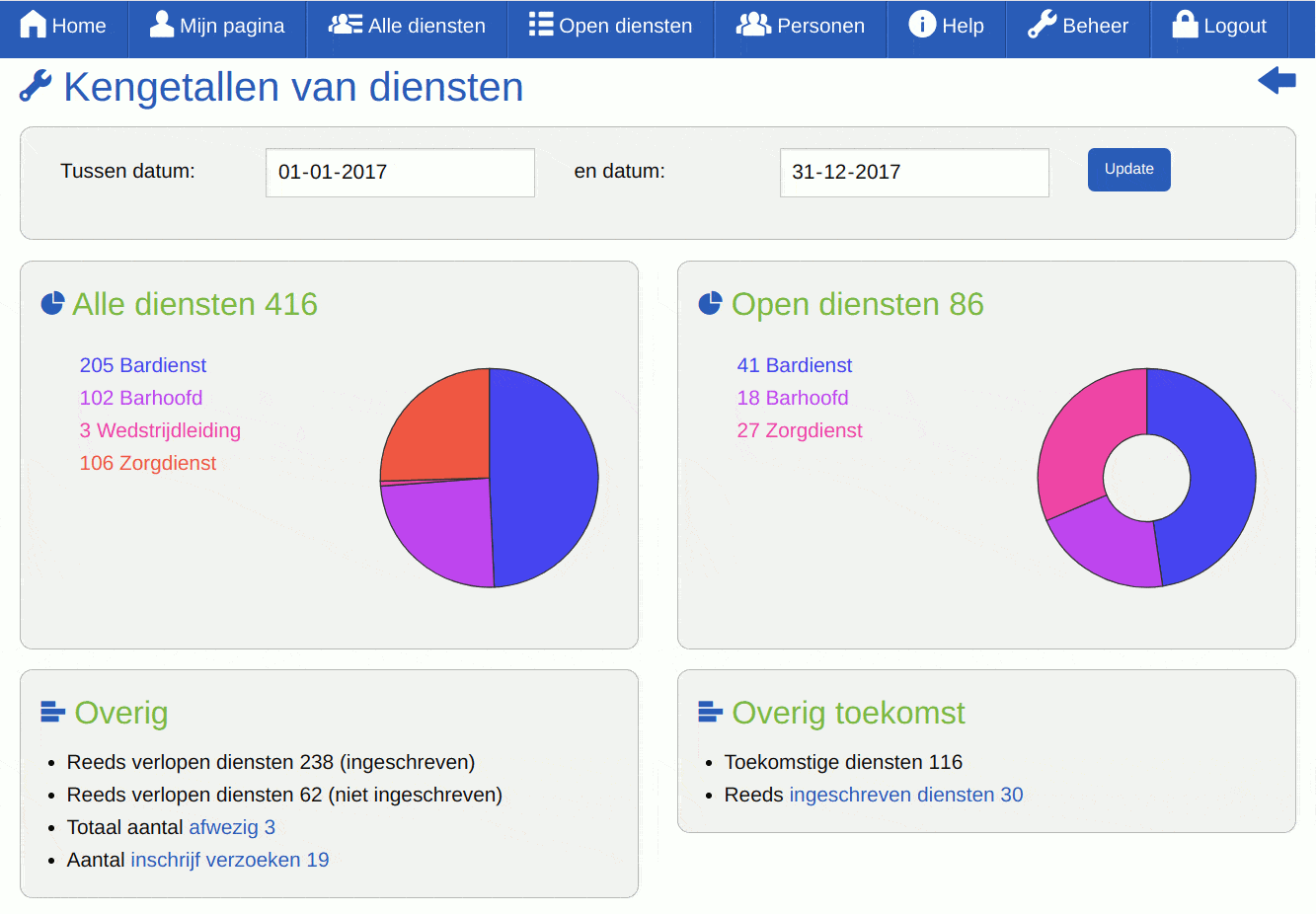
Shift statistics (administrator)
There are many overviews and charts about the usage of ShiftPlanner.
Manage groups (administrator)
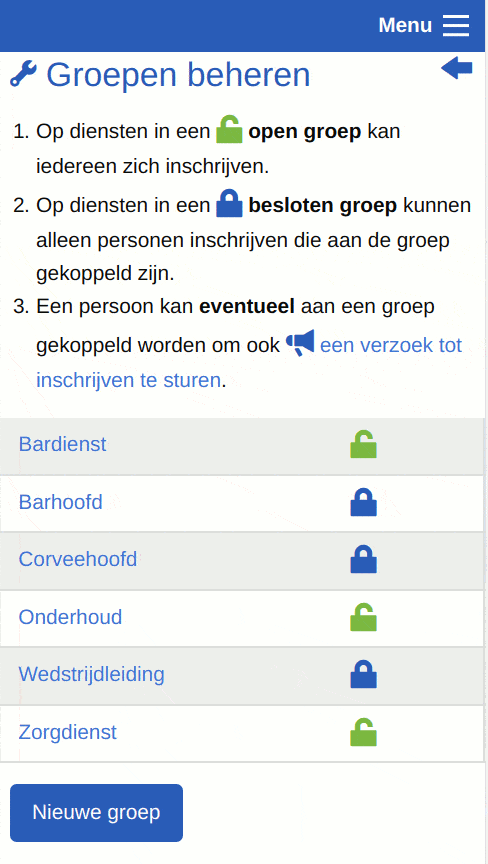
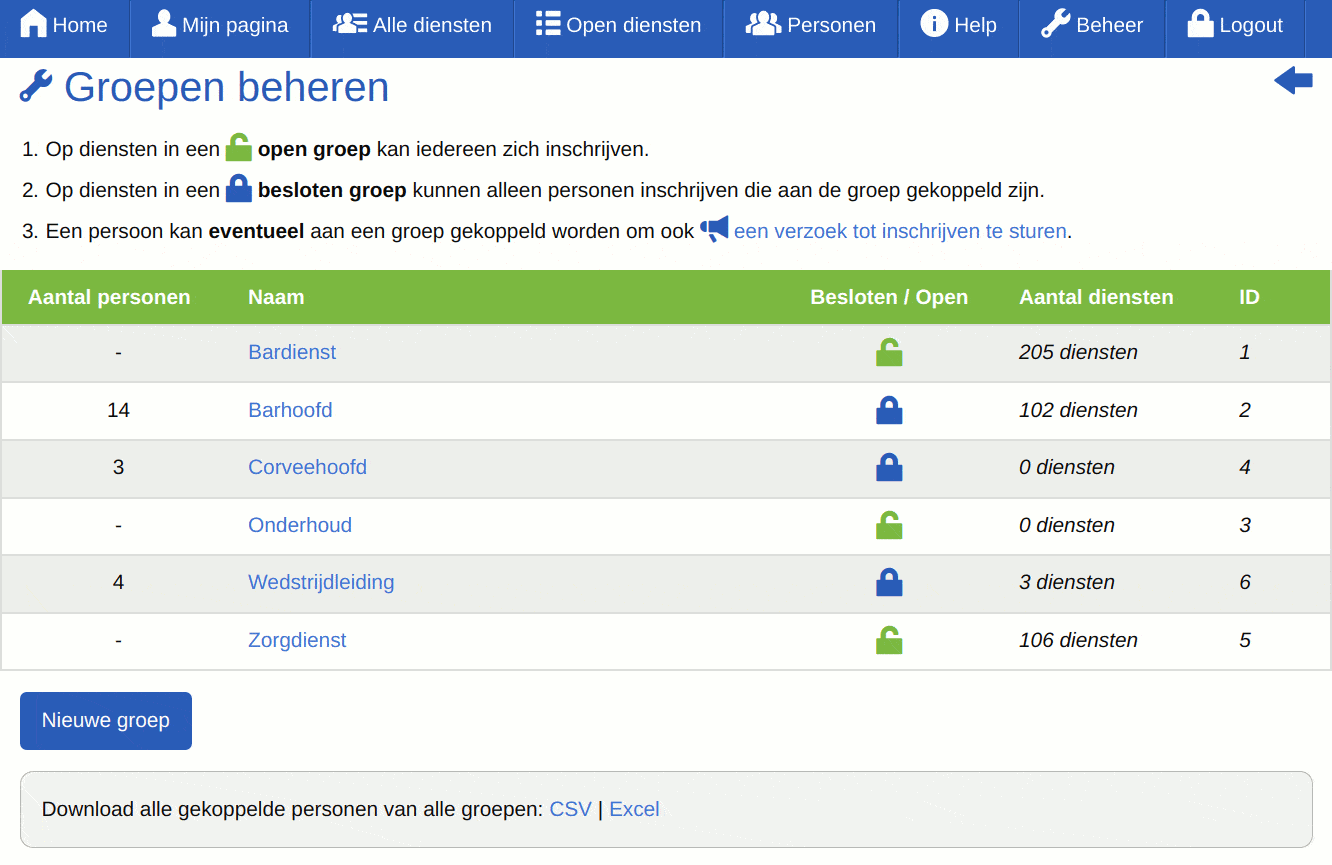
You can divide people into groups so that only those people can assign for the relevant group's shifts.
You can also use groups to send a commitment request. See also screenshot Send a commitment request.
There are of course many more pages, but these screenshots give you a good impression of what ShiftPlanner has to offer. There is more documentation available that provides further explanation. You can also take a look at the demo site.